
SonicOS 8 SD-WAN
Table of Contents
Adding an SD-WAN SLA Class Object
To add an SLA class object
- Navigate to NETWORK | SD-WAN > SLA Class Objects.
- Click Add.
The Add SLA Class Object dialog box is displayed.
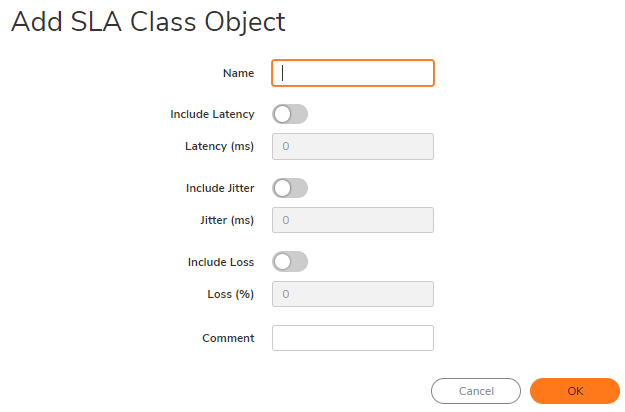
- In the Name field, enter an SLA class object name.
-
Turn on Include Latency to use latency as a criterion for this object, or turn it off to exclude it. This option is on by default.
-
If Include Latency is turned on, enter the acceptable latency, in milliseconds, in the Latency (ms) field. The minimum is 0 milliseconds, the maximum is 1,000 milliseconds, and the default is 0 milliseconds.
-
Turn on Include Jitter to use jitter as a criterion for this object, or turn it off to exclude it. This option is on by default.
-
If Include Jitter is turned on, enter the acceptable jitter, in milliseconds, in the Jitter (ms) field. The minimum is 0 milliseconds, the maximum is 1,000 milliseconds, and the default is 0 milliseconds.
-
Turn on Include Loss to use packet loss as a criterion for this object, or turn it off to exclude it. This option is on by default.
-
If Include Loss is turned on, enter the acceptable percentage of packet loss in the Loss (%) field. The minimum is 0, the maximum is 100, and the default is 0.
- You cannot exclude all three attributes (Latency, Jitter, Packet Loss) in the same object.
- To choose practical thresholds, view the measured latency, jitter, and loss on the SLA Probes page.
- Optionally, enter a comment in the Comment field.
- Click OK.