SonicOS 8 Objects
Table of Contents
Adding a SaaS & AI Application Group
To add a SaaS & AI Application Group
- Navigate to OBJECT | Match Objects > SaaS & AI Applications.
- Click the SaaS & AI Application Groups tab.
- Click + Add.
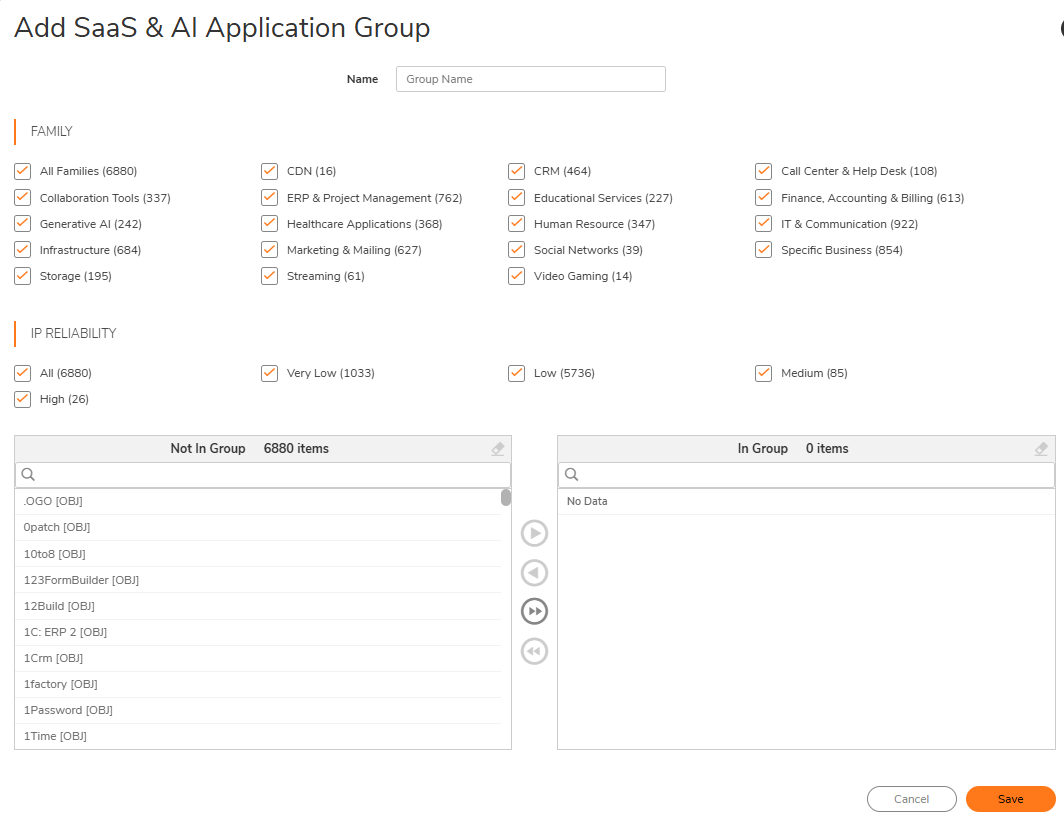
- In the Namefield, enter a descriptive and unique name for the group.
- (Optional) Use the Familyfilter to control which applications appear in the selection panel. Select or clear theFamilycheck boxes to filter the available applications list. Each family shows the number of applications in parentheses.
-
(Optional) Use theIP Reliabilityfilter to control which applications appear based on confidence level. Select or clear theIP Reliabilitycheck boxes to filter the available applications list.
-
Select applications using the two-panel selector:
Panel Description Not In Group Lists available application objects not yet added to the group. The header displays the item count. Use the search field to filter by name. The [OBJ] suffix identifies the item as an application object. In Group Lists application objects currently added to the group. The header displays the item count. Displays "No Data" when empty. -
Use the arrow buttons between the two panels to move applications:
-
Click the single right arrow
 to move the selected applications fromNot In Group to In Group.
-
Click the single left arrow
 to move the selected applications fromIn Group back to Not In Group.
-
Click the double right arrow
 to move all filtered applications from Not In Group to In Group.
-
Click the double left arrow
to move all applications from In Group back to Not In Group.
-
-
Verify that the selected applications appear in theIn Grouppanel and that the item count is correct.
-
Click Save.
The Add SaaS & AI Application Group dialog is displayed.