
SonicOS 8 Device Settings
Table of Contents
Importing Settings
SonicOS supports importing both encrypted (.epf) and unencrypted (.exp) configuration files. When an encrypted configuration file is selected, the system prompts for the decryption password before proceeding.
This encryption feature is supported in SonicOS 8.2.3 and later versions.
To import a previously saved configuration file into the firewall
- Navigate to Device | Settings > Firmware and Settings.
-
Click Import/Export Configuration, and then click Import Configuration.

Before you import, export the current configuration or save a copy to the cloud. For instructions, see Creating a Local Backup Firmware Image or Creating a Cloud Backup Firmware Image for instructions on creating a firmware backup.
-
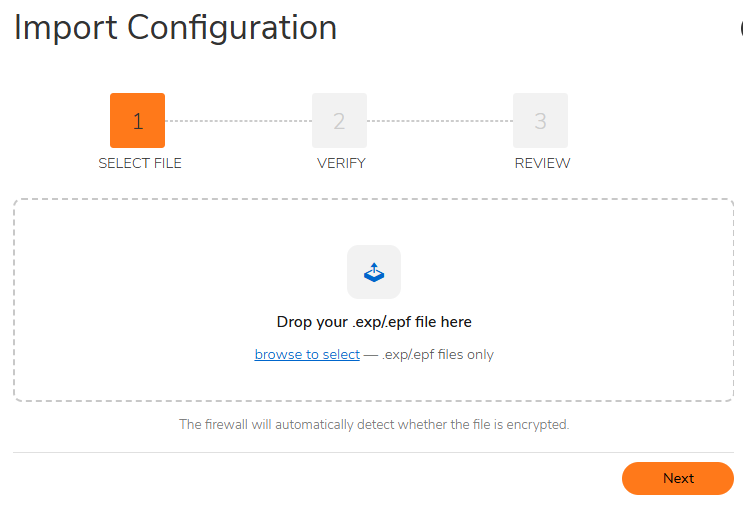
In the Import Configuration dialog, do one of the following:
- Drag and drop an .exp or .epf file into the upload area.
- Click browse, and then select an .exp or .epf file from your local system.
-
Click Next.
The firewall automatically detects whether the selected file is encrypted.
-
In the Verify step:
- For an encrypted (.epf) file, enter the Decryption password. This must be the same password that was used during export.
- For an unencrypted (.exp) file, select the I confirm I want to import this unencrypted configuration file check box.
-
Click Next.
-
Review the import details and the warning message.
-
Click Import Now.
Importing a configuration file overwrites the active configuration. The firewall restarts automatically when the import completes.