
SonicOS 8 Device Settings
Table of Contents
Enabling NDPP Mode
You can configure the firewall to meet the Network Device Protection Profile (NDPP). Some settings are required, and others are prohibited.
This feature is supported in SonicOS 8.2.3 and later versions.
NDPP is a part of Common Criteria (CC) certification. However, NDPP in SonicOS is not certified.
The security objectives for a device that claims compliance to a Protection Profile are defined as:
Network Device Protection Profile (NDPP) is a standardized set of security requirements based on the Common Criteria (CC) framework (ISO/IEC 15408) for network hardware appliances. SonicWall firewalls running SonicOS can be configured in NDPP mode to comply with Common Criteria security standards.
When you enable NDPP, a dialog appears with the NDPP mode setting compliance checklist. The checklist lists each setting in your current SonicOS configuration that does not meet NDPP requirements. Change these settings on the relevant pages of the management interface.
To enable NDPP mode and view the compliance checklist
You cannot enable NDPP Mode and FIPS Mode at the same time.
- Navigate to Device | Settings > Firmware and Settings.
- Click Settings.
- Click the FIPS/NDPP tab.
-
Turn on the Enable NDPP Mode toggle.
The NDPP Mode Setting Verification dialog appears with a list of required and prohibited settings.
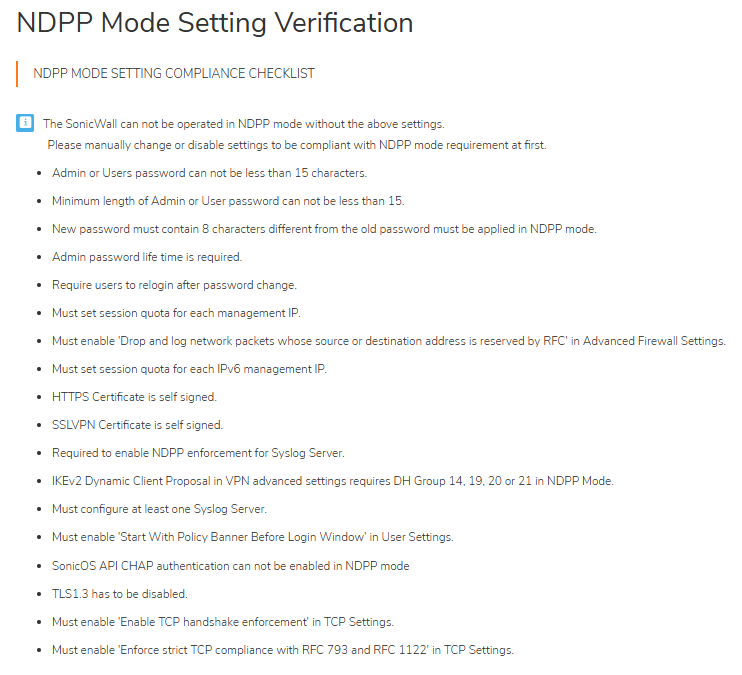
- If the firewall complies with the checklist, go to step 6. If it does not, change or disable the listed settings, and then repeat step 4.
If you close the NDPP Mode Setting Verification dialog before completing all required changes, the Enable NDPP Mode toggle turns off automatically. Turn on the Enable NDPP Mode toggle again to view the configuration changes still needed for NDPP compliance.
- Click Close
 to close the NDPP Mode Setting Verification dialog.
- Click OK.