
SonicOS 8 Users
Table of Contents
New or Factory Reset Enrollment Flow
After a factory reset, complete these steps the first time you log in
-
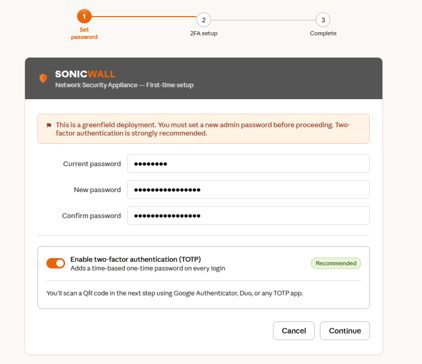
On the Set password page, in the Current Password field, enter your current password.
-
In the New Password field, enter a strong password that meets the displayed complexity requirements.
-
In the Confirm Password field, re-enter the new password.
-
Turn on the Enable Two-Factor Authentication (TOTP) toggle. This option is enabled by default.
If you plan to manage the firewall using Network Security Manager (NSM), Zero-Touch (ZT) is the recommended onboarding method. If you plan to manually onboard the firewall to NSM using administrator credentials, MFA must be disabled for the administrator account used by NSM.
-
Click Continue.
-
On the 2FA setup page, scan the QR code with an authenticator app, such as Google Authenticator, Microsoft Authenticator, or Duo.
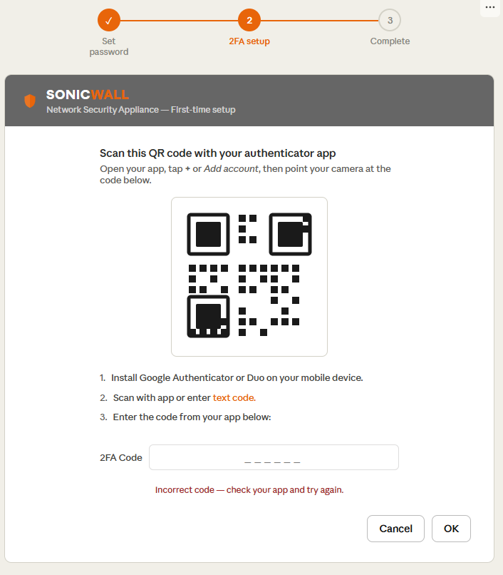
If you cannot scan the code, click the text code and enter it in the app.
-
In the 2FA Code field, enter the 6-digit verification code generated by your authenticator application.
-
Click OK.
-
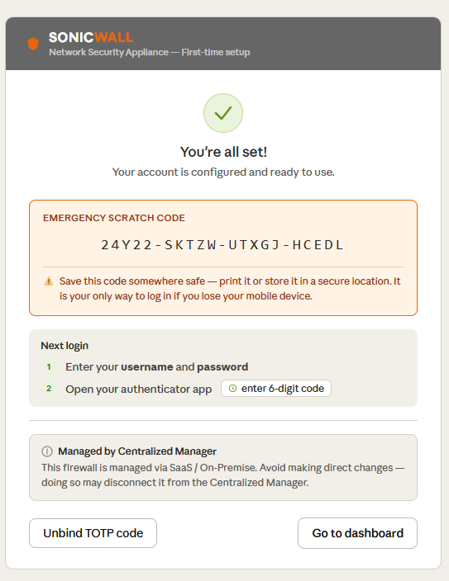
After successful verification, the completion screen shows:
-
Emergency Scratch Code: Copy and securely store the one-time backup scratch code. Use this code if you lose access to your authenticator device.
-
Next login instructions (username and password + 6-digit TOTP code).
-
A Centralized Manager notice (if applicable).
-
An Unbind TOTP code link (with inline confirmation to prevent accidental unbinding).
-
-
Click Go to dashboard.