SonicOS 8 Security Services Administration Guide
Table of Contents
Configuring Intrusion Prevention Service
IPS must be enabled globally and on the zones where you want to apply protection. Beginning with SonicOS 8.2.3, these settings are enabled by default when the firewall is registered and licensed. Use the following procedures to verify or enable IPS.
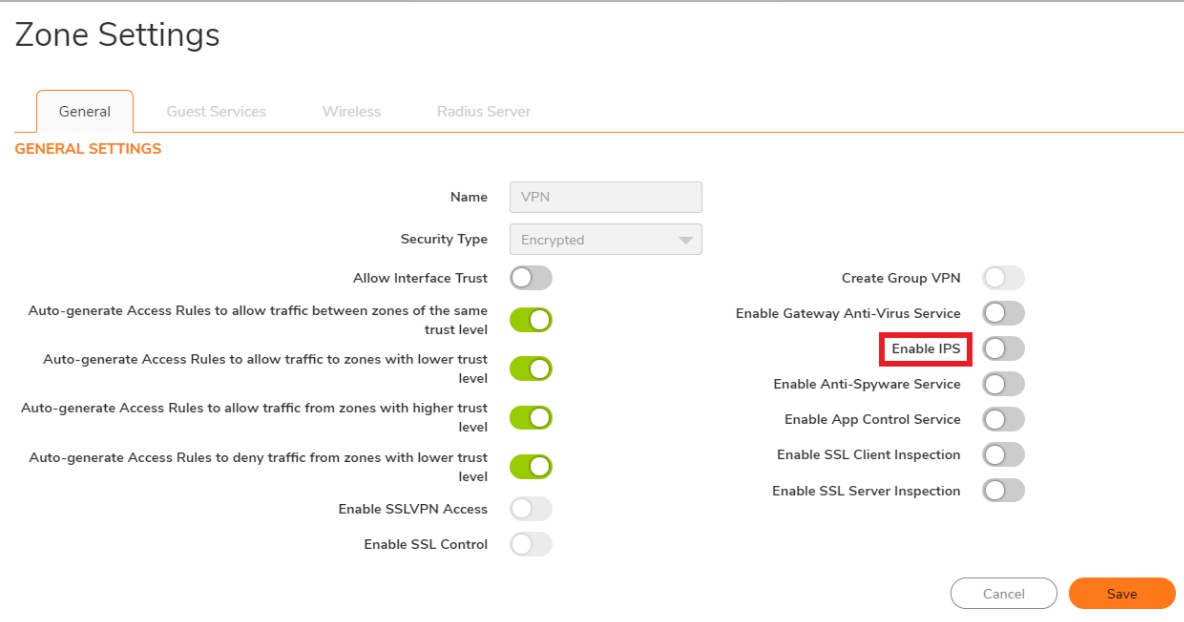
To enable IPS on a zone
-
Navigate to Object > Match Object > Zones.
-
Click the Edit icon for the zone you want to configure.
-
If Enable IPS is turned off, turn it on.
-
Click Save.
To enable IPS globally
-
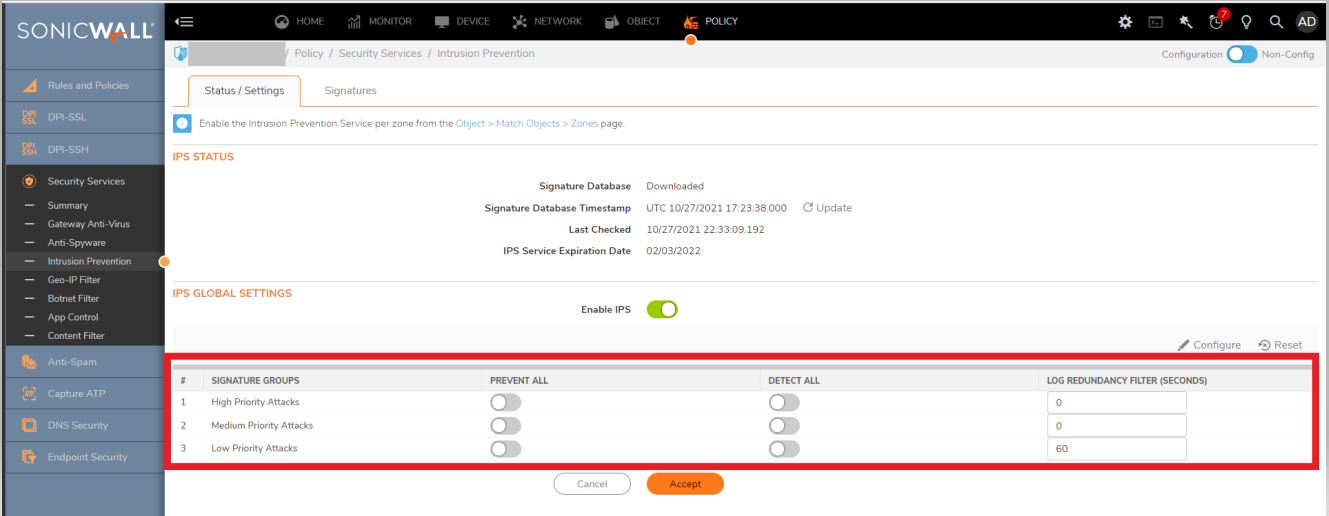
Navigate to POLICY | Security Services > Intrusion Prevention.
-
-
Enable/Disable PREVENT ALL and DETECT ALL button for the SIGNATURE GROUPS.
-
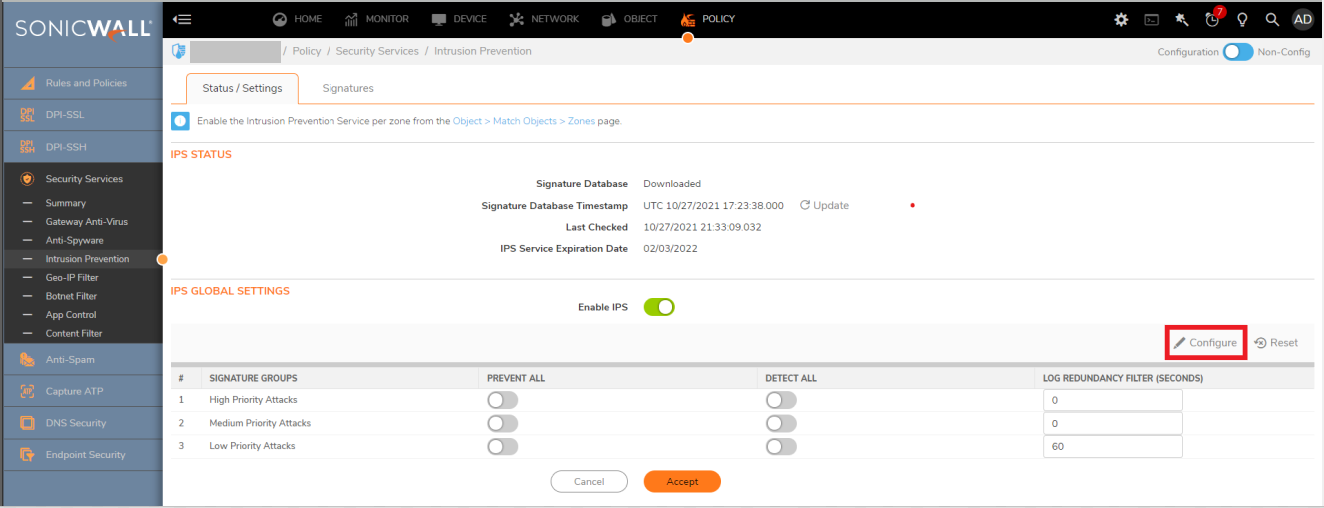
Click Configure.
-
Turn on Enable IPS Exclusion List, and then select one of the following:
-
Select Use Address Object.
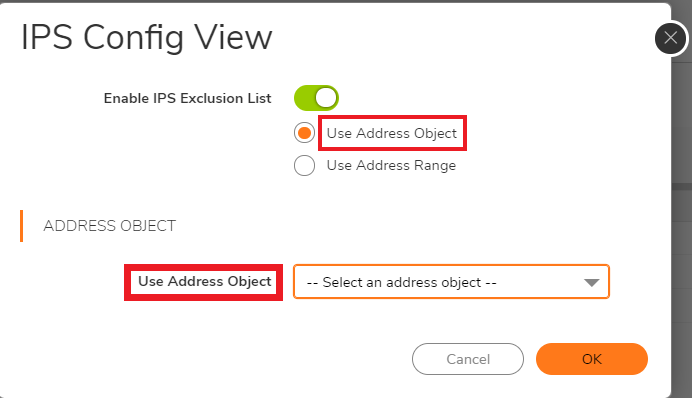
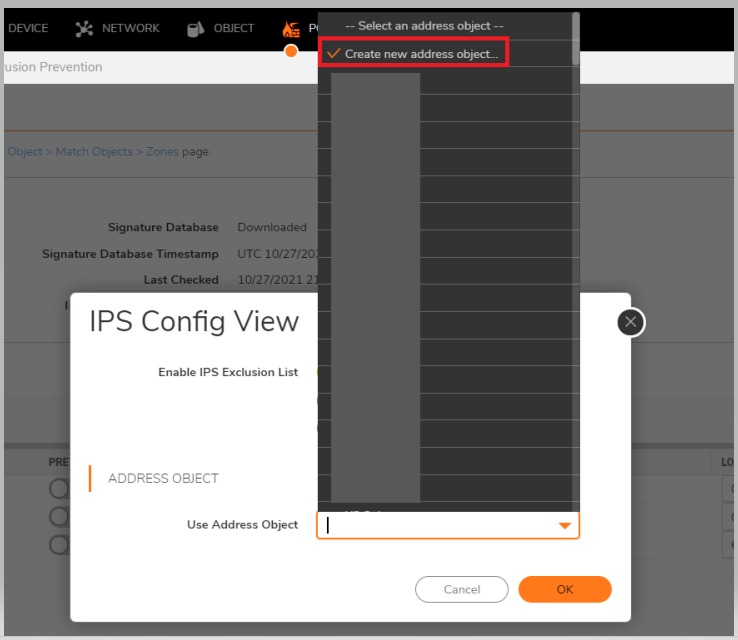
From the Use Address Object drop-down menu, select an existing address object, or select Create new address object.
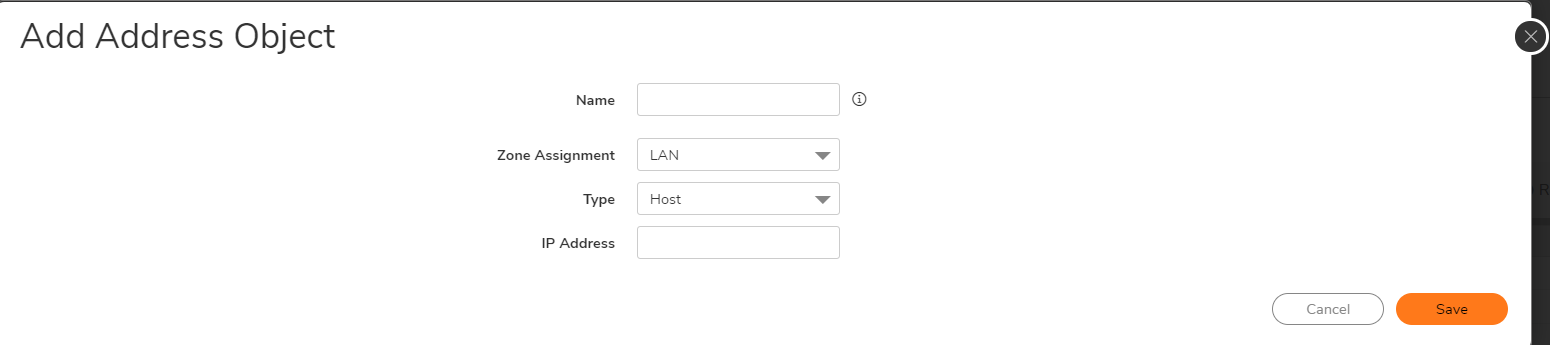
Enter the details of the object and click Save.
-
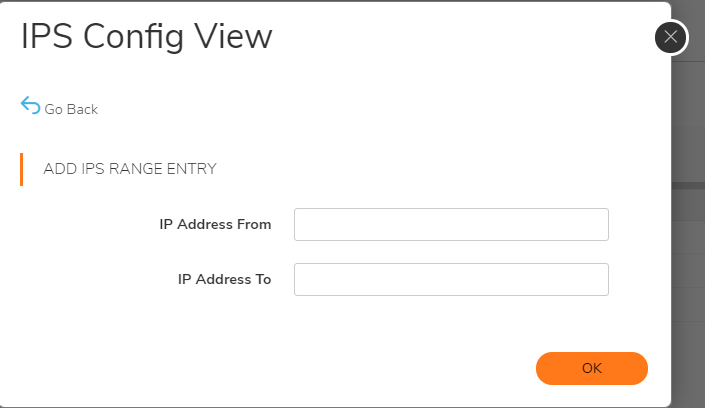
Select Use Address Range and click Add.
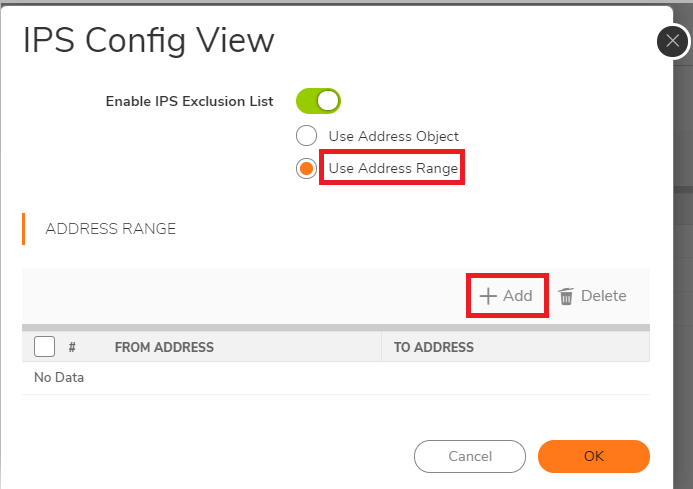
Enter the start and end addresses and click OK.
-
-
Click Accept.
To disable IPS
Disabling IPS removes protection against known exploits and vulnerabilities for both pass-through traffic and traffic destined to the firewall itself. SonicWall strongly recommends keeping IPS enabled at all times.
-
Navigate to POLICY | Security Services > Intrusion Prevention.
-
On the Status/Settings tab, turn off Enable IPS.
-
Click Accept.
To edit IPS Signatures
-
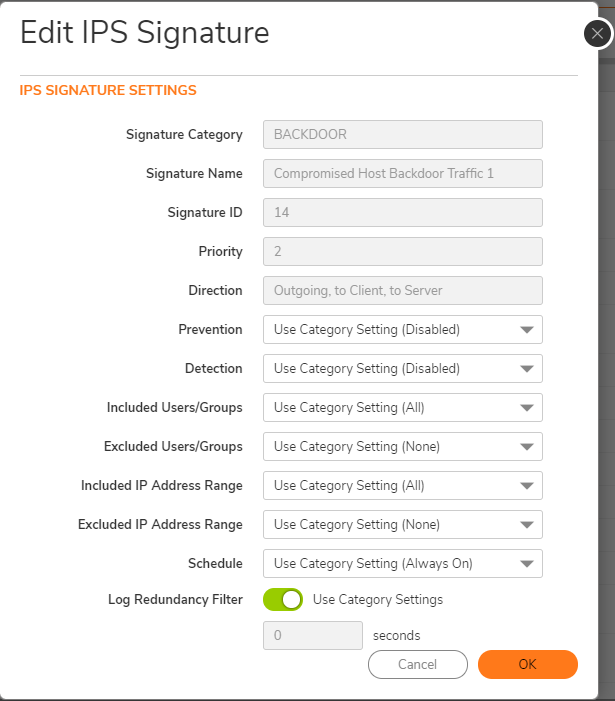
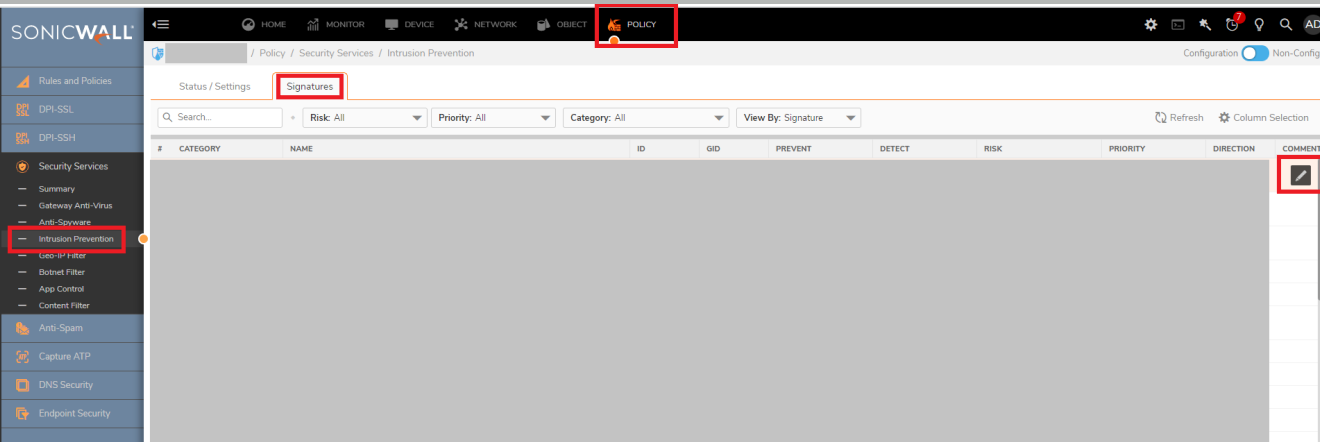
Navigate to POLICY | Security Services > Intrusion Prevention. Under Signature, hover over the signature to update and click the Edit icon
 .
-
Update the details and click OK.