
SonicOS 8 Rules and Policies for Policy Mode
Table of Contents
Adding Static Routes
To add a static route
-
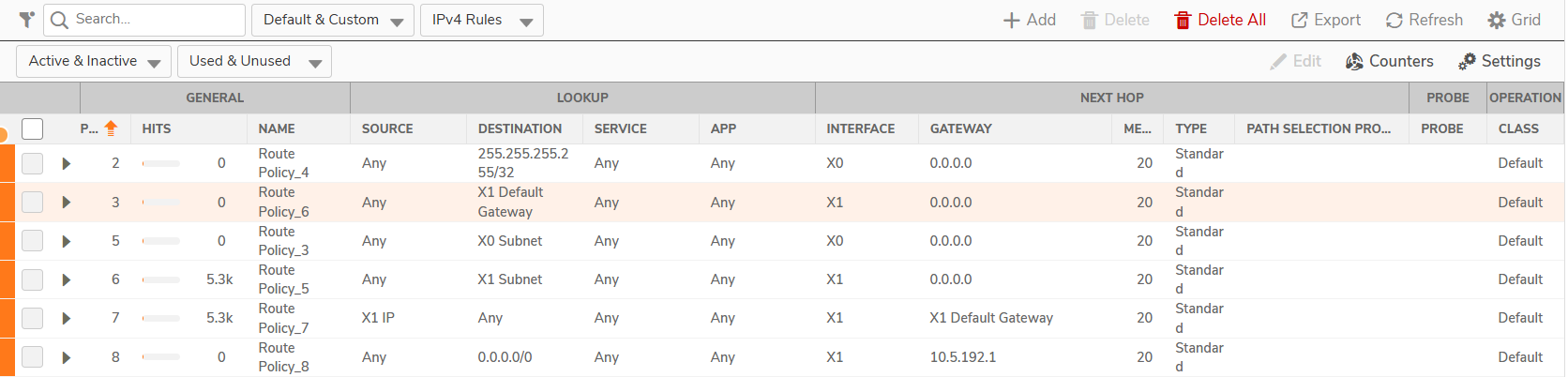
Navigate to the POLICY | Rules and Policies > Routing Policy page.
-
Click + Add. The Adding Rule dialog box appears.
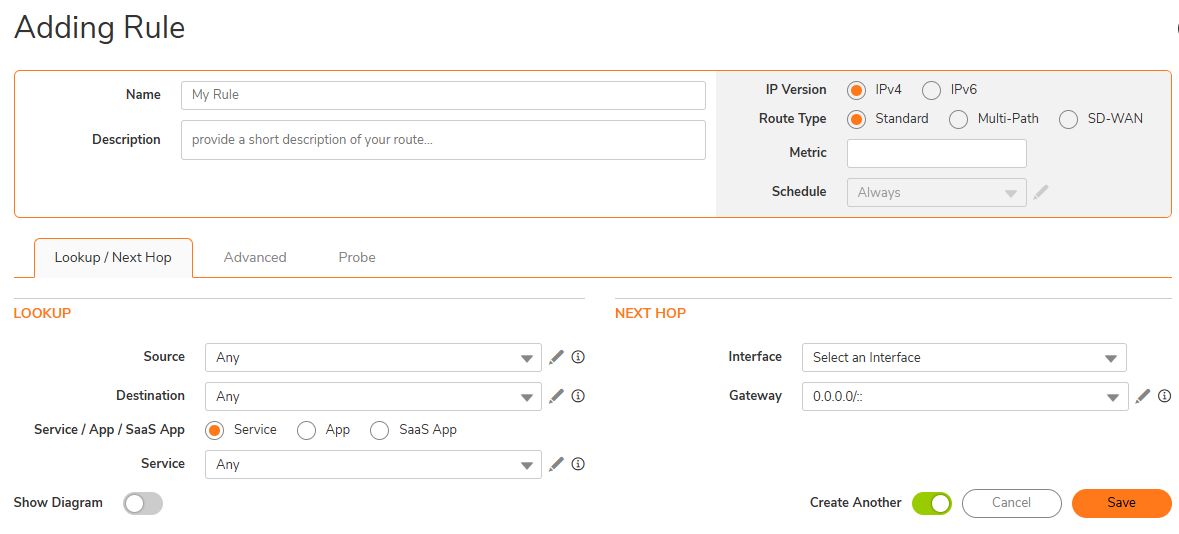
- In the Name field, enter a name for the route.
- In the Description field, enter a descriptive comment.
- Select the IP Version: IPv4 or IPv6.
-
Select the Route Type:
- Standard (default): Routes matching traffic through one interface and one gateway.
- Multi-Path: Routes matching traffic through more than one interface and gateway combination.
- SD-WAN: Routes matching traffic by using a path selection profile.
- Enter the route metric in the Metric field.
- If the Route Type is SD-WAN, select a Schedule from the drop-down menu. The default is Always. To add or edit a schedule object, see Adding or Editing a Schedule Object. For more information about SD-WAN, see the SonicOS 8 SD-WAN Administration Guide.
-
Click the Lookup/Next Hop tab. In the Lookup section, do the following:
-
Select the Source and the Destination from the drop-down menus. To add an address object or address group, click the Edit icon next to the drop-down menu.
-
For Service / App / SaaS App, select how to match the traffic:
- Service: Select a service object from the Service drop-down menu.
- App: Select a deep packet inspection (DPI) application signature from the App drop-down menu. The App option requires the App Control license. For more information, see App-based Routing.
- SaaS App: Select an existing SaaS & AI Application Group from the SaaS App Group drop-down menu. If no group exists, click the Edit icon to create one. For more information, see the SonicOS 8 Objects Administration Guide.
The SaaS App option is supported in SonicOS 8.2.3 and later. The firewall must download the SaaS & AI Applications database (Cloud Sync turned on), and a SaaS & AI Application Group must exist.
-
-
In the Next Hop section, the fields depend on the Route Type:
-
Standard: Select the Interface and the Gateway from the drop-down menus. To add an address object, click the Edit icon next to the Gateway drop-down menu.
-
Multi-Path: Select the Number of Gateways. Then select the Interface and Gateway combinations for that number.
-
SD-WAN: Select a Path Selection Profile and an Interface from the drop-down menus.
-
-
Click Save, or click the Advanced tab to continue.
- Optionally, select Disable route when the interface is disconnected.
- In the TOS (Hex) field, enter the Type of Service (ToS) hexadecimal value.
- In the TOS Mask (Hex) field, enter the ToS mask hexadecimal value.
- In the Admin Distance field, enter the administrative distance (the priority of the route, where a lower value has higher priority), or select Auto to assign the value automatically.
-
Click Add, or click the Probe tab to continue.
- Select a probe type from Probe. The default is None. If you select a probe type, additional options appear.
- Select Disable route when probe succeeds. This option is not selected by default.
- Select Probe default state is UP.
- When you are finished, click Add. The route appears in the route policies table.
Adding or Editing a Schedule Object
To add a schedule object
- Click the Edit icon next to the Schedule drop-down menu.
-
Select New Schedule Object. The Adding Schedule Object dialog box appears.

- Enter a Schedule Name.
-
Select the Schedule Type: Once, Recurring, or Mixed. Additional settings depend on the type that you select.
- Click Save.
To edit a schedule object
- Select an existing Schedule from the drop-down menu.
- Click the Edit icon next to the Schedule drop-down menu.
- Select Edit Schedule Object. The Editing Schedule Object dialog box appears.
- Update the schedule settings.
- Click Save.