
How to generate and schedule SSL VPN logs report in NSM?
Description
How to generate and schedule SSL VPN logs in NSM?
It is applicable for both NSM On-Prem as well as SaaS.
Applicable for Gen 7 and Gen 8 firewalls.
Resolution
- Login to NSM and switch to the Firewall View of the specific firewall for which the SSL VPN Logs are needed. In this example it is NSM On-Prem. Same applied for NSM SaaS as well.
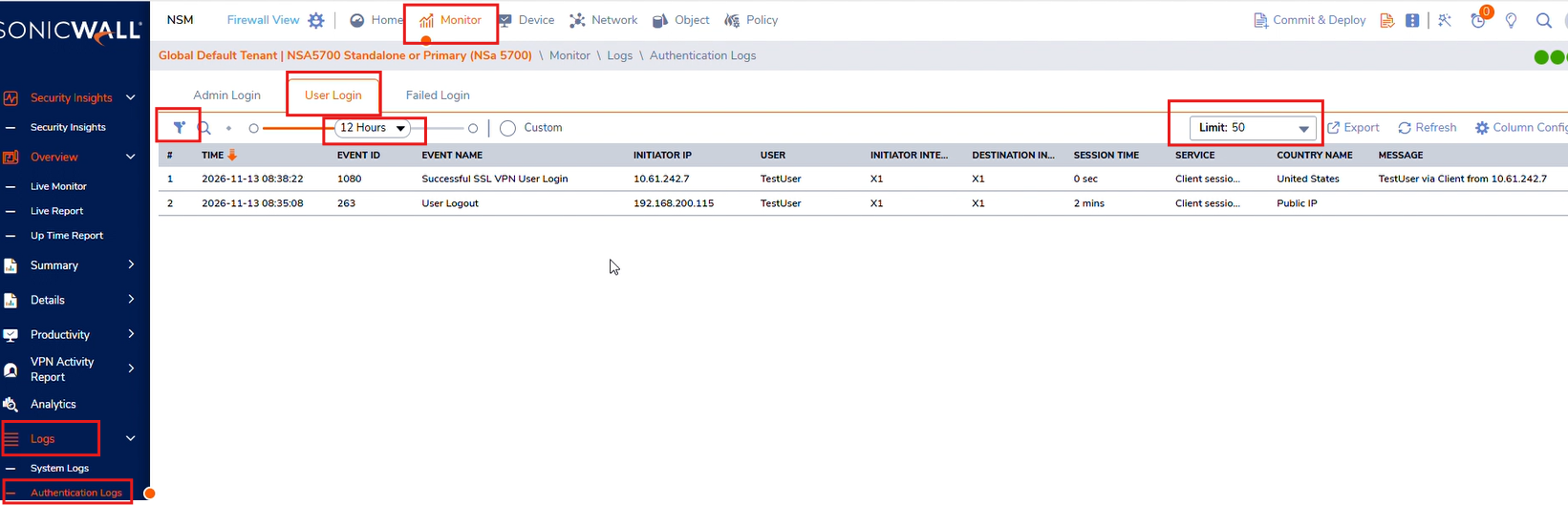
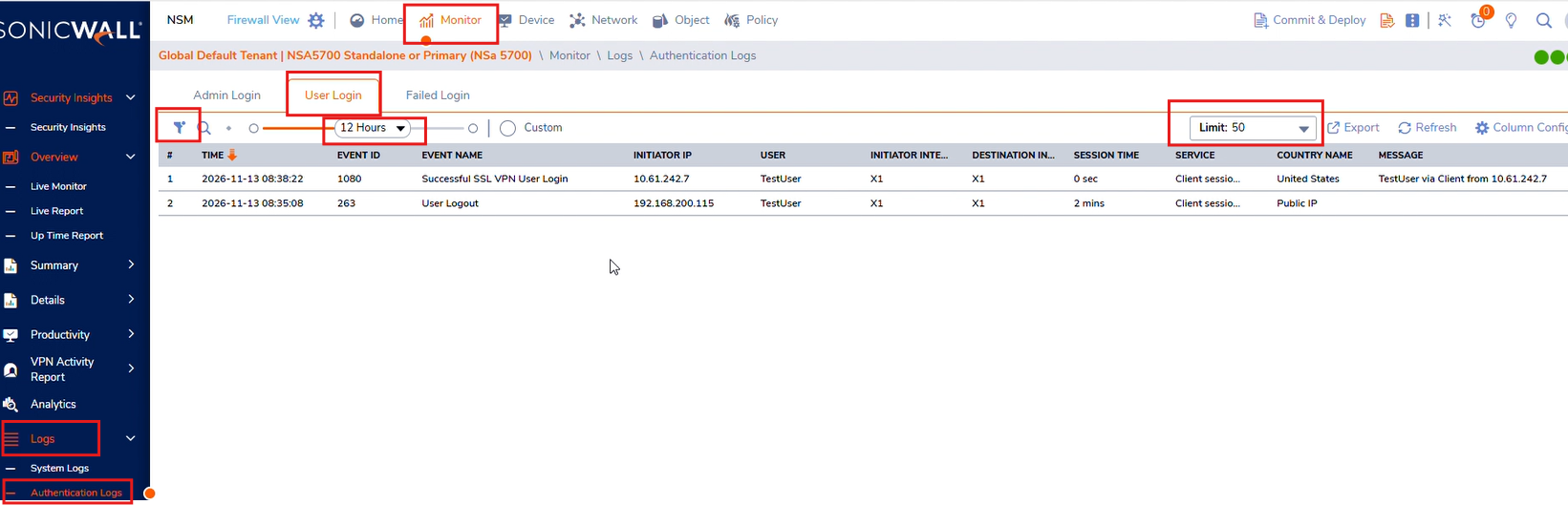
Firewall View->Monitor->Logs->Authentication Logs->User Login, adjust the time range for which logs need to be exported and max rows if logs are more than 50 rows:
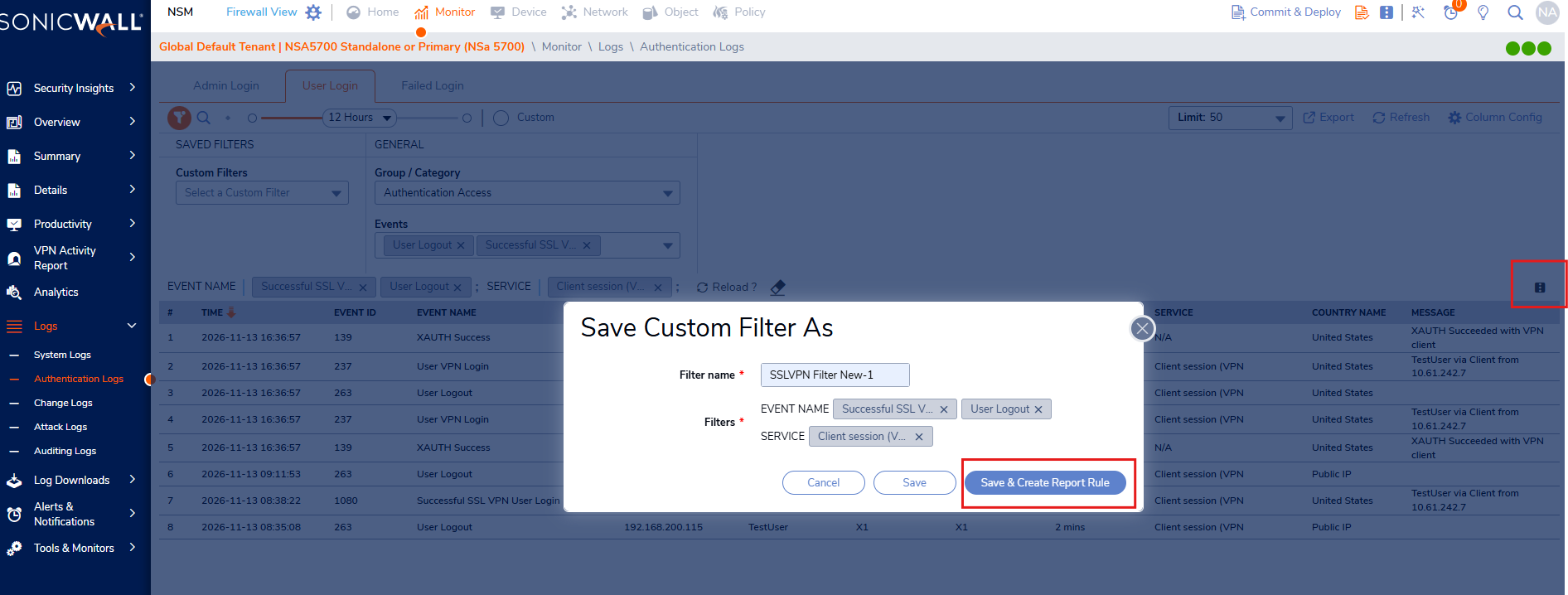
2. Click on filter under this section and choose "Authentication Access" as category and "Successful SSL VPN User Login" and "User Logout" as Events and select Client session as service and click on "Reload". Once the logs are populated, save the filter and Create Report Rule:
3. It will launch Create Report Rule wizard, select the options as per your requirement and click next:
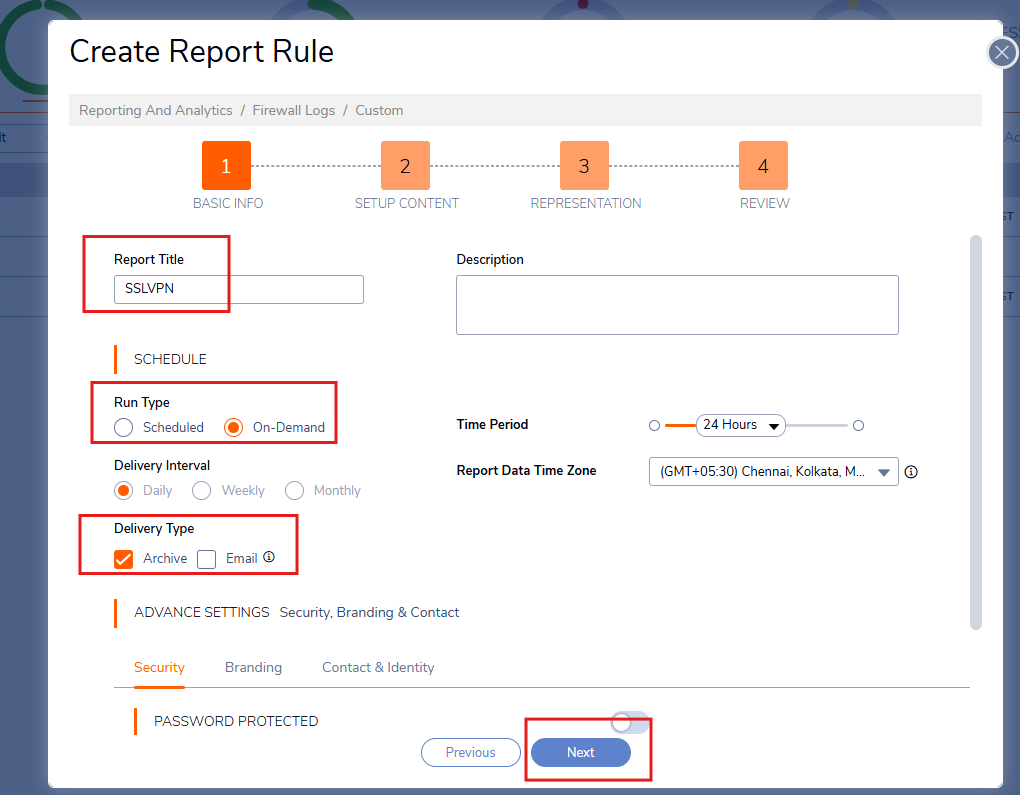
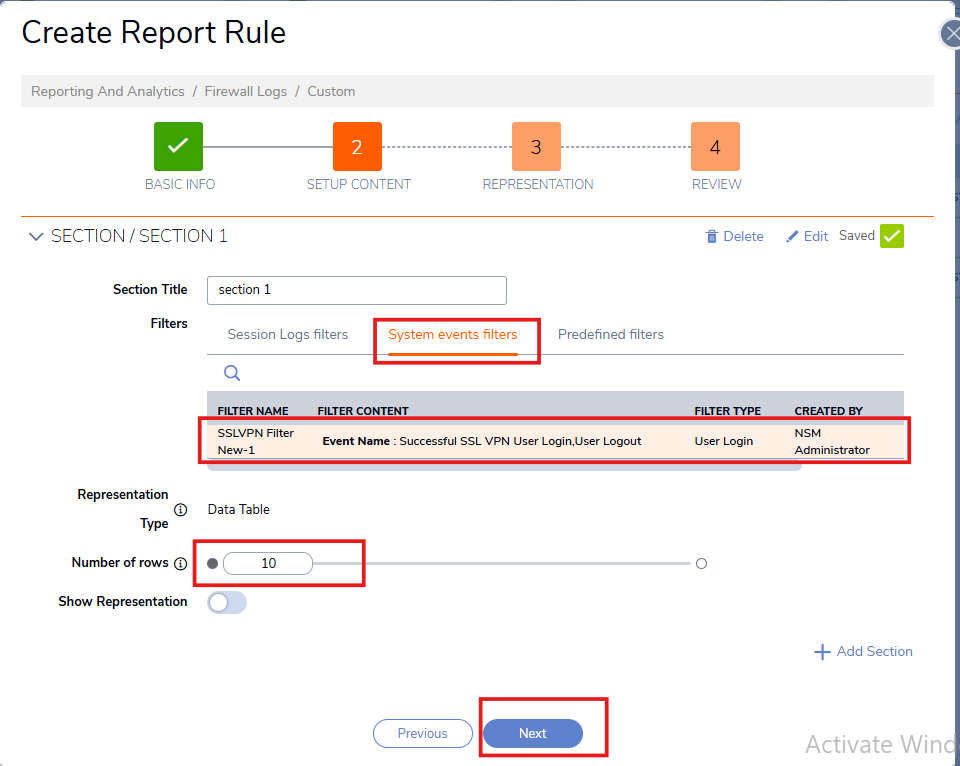
Select "System Events Filters" which will show the filter added under User Login section mentioned in step 2. Click Next and Finish.
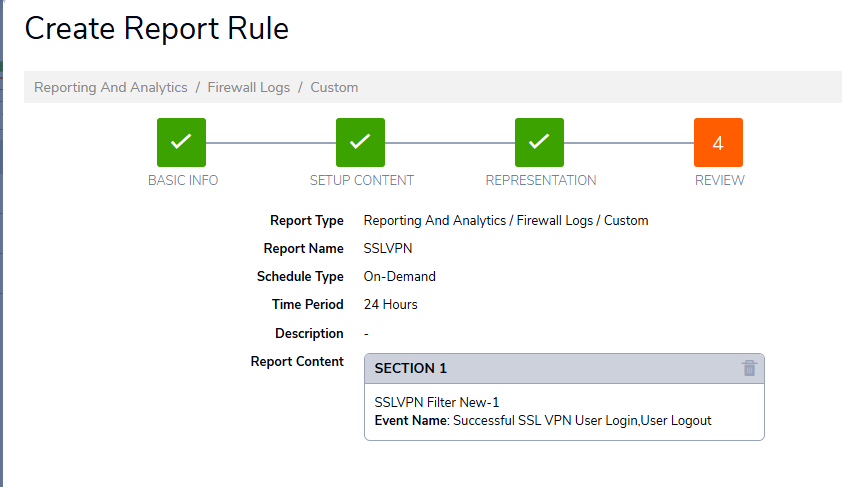
This is how the data in report looks like:
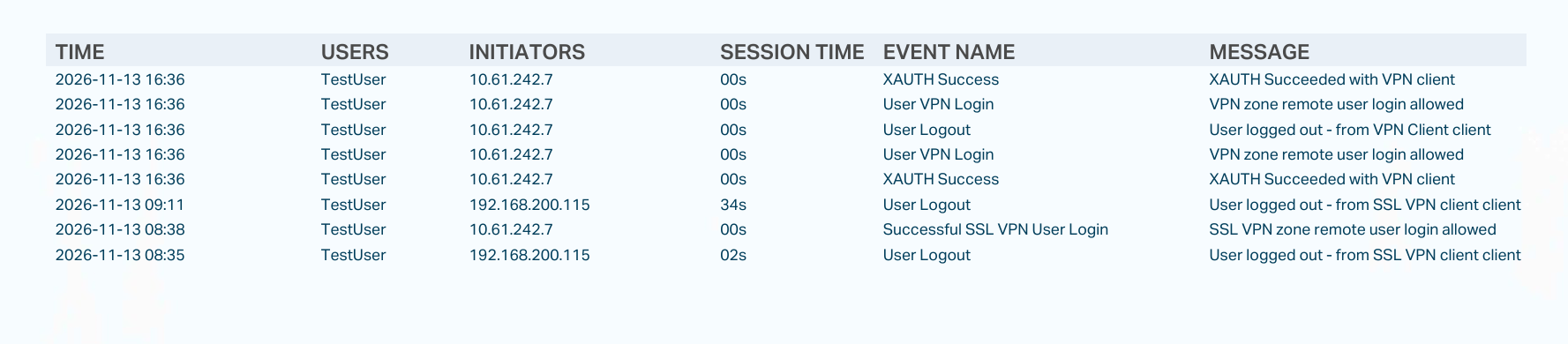
Note: Session duration for a specific user login event is always included the User logout message.